Floor Plan to 3D Conversion: What to Specify First
Share this article


Key takeaways
- An AI floor plan to 3D converter fills in what it cannot read from a flat image, wall thickness, structural layers, door and window schedules, with a default guess.
- A conversion only holds up past a first look if scale, structural layers, and ceiling heights are confirmed before the conversion starts, not fixed afterward.
- A quick AI render is enough for a client preview; a construction accurate model needs the same specification step a Revit workflow already requires at the start.
- A dedicated conversion professional applies that specification step by default, in the firm's own software and templates, backed by a dedicated Account Manager and a two week replacement guarantee.
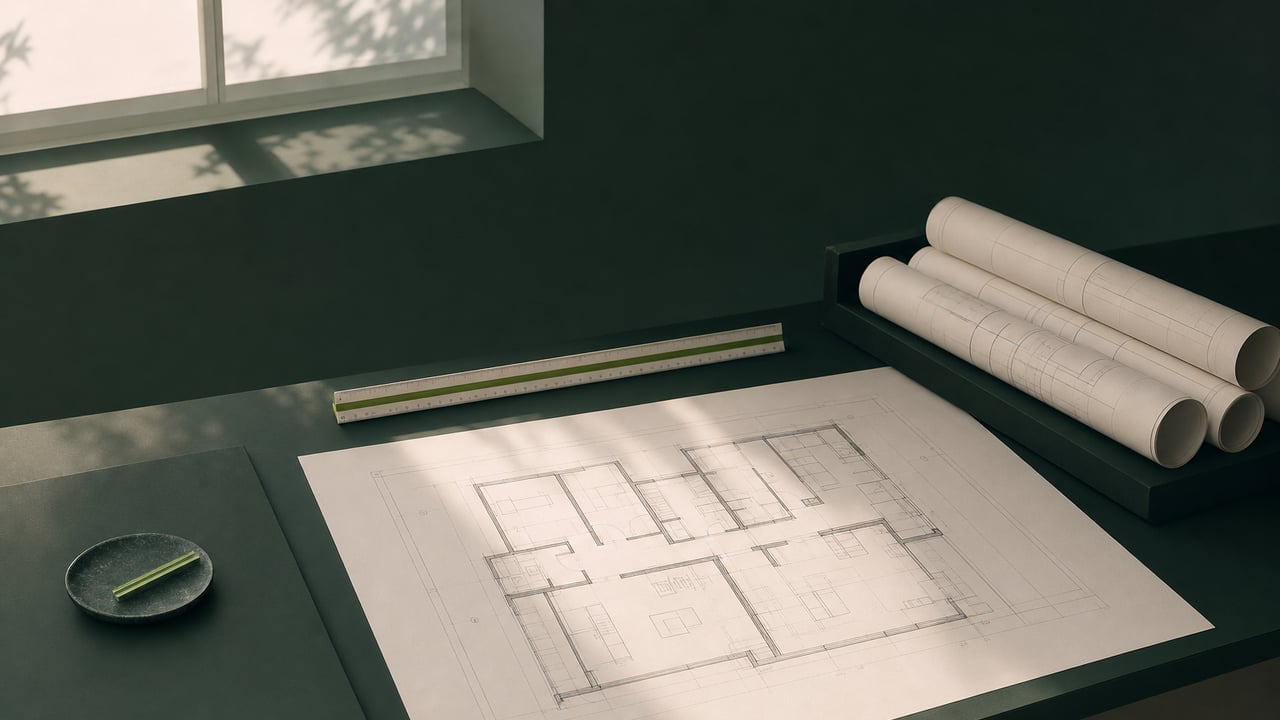
AI tools can turn a floor plan into a 3D model in minutes, but they guess at what they cannot read. Here is what to specify before any conversion starts.
A Floor Plan to 3D Conversion Is Only as Good as What You Specify First
Upload a floor plan, pick a style, get back a 3D view in a couple of minutes. That is the promise behind every result on the first page for "floor plan to 3d conversion," and it is a real promise. What none of those tools ask you for, before they start, is the information that decides whether the result is a quick visual or something you can actually build from.
This guide covers that missing step: what an automated converter has to guess when you do not give it the real data, and the short list of things worth specifying before any floor plan goes into a conversion, automated or professional.
What an AI Floor Plan Converter Guesses Instead of Measures
An AI floor plan to 3D converter reads a flat image or PDF and recognizes shapes it has seen before, lines that look like walls, gaps that look like doors, openings that look like windows. It does not measure a real building. Anything the image does not show clearly, it fills in with a default.
That usually means wall thickness and material get a generic value instead of the real assembly. Structural elements that do not appear as a line on the plan, a bearing wall, a column, a beam overhead, do not appear in the 3D model either. Door and window schedules collapse into a single generic size. Ceiling heights, which a 2D floor plan does not show at all, get one flat default for the whole building instead of the real height per room.
None of that matters for a fast client preview. All of it matters the moment the model needs to inform a decision, a renovation budget, a structural review, a permit submission.
Five Things to Specify Before Any Floor Plan to 3D Conversion
A short specification step, done before the conversion starts, closes most of the gap above. These five hold for an automated tool and for a professional conversion alike:
- Scale and units. Confirm the drawing's scale and whether dimensions are in feet and inches or metric, so every wall and room in the 3D model lands at the real size, not a size the tool assumed from the image proportions.
- Wall type and thickness. Note which walls are structural or load bearing and which are partitions, and their real thickness. A converter reading a single line weight cannot tell the two apart.
- Door and window schedule. List real door and window sizes and swing directions where they matter, instead of letting a generic size stand in for every opening on the plan.
- Ceiling heights per room. Flag any room with a different ceiling height, a vaulted living room, a dropped hallway, a sloped attic space, since a 2D floor plan cannot show height at all and a converter will default to one flat number.
- Anything the floor plan does not show. Beams, columns, soffits, or structural elements visible on a reflected ceiling plan or a structural set but not on the floor plan itself need to be called out separately, or they will not exist in the 3D model.
When a Quick AI Render Is Enough, and When It Is Not
A free AI floor plan to 3D converter is enough when the model's only job is to help someone picture a space, a client walkthrough early in a project, a quick massing study, a social post. Nobody is pulling a dimension off that model to order materials or submit a permit, so a default guess in place of real data costs nothing.
It stops being enough the moment the model has to carry a real decision. A renovation budget built from the wrong wall thickness is wrong before the first quote comes in. A structural review that is missing a bearing wall the plan never flagged starts from a false premise. A permit submission needs every dimension to match the building, not the tool's best guess at it.
How a Dedicated Conversion Professional Keeps the Handoff Intact
WorldTeams' own work on 3D CAD services treats conversion, rebuilding a PDF, paper, or legacy 2D set into an editable CAD or Revit file, as one of three distinct jobs, separate from new 3D modeling and separate from BIM modeling. A dedicated conversion professional starts the same way this checklist does: by asking for scale, the structural and wall information, the schedules, and the firm's own CAD or Revit standard, before touching the file.
That specification step is not extra overhead. It is the same discipline WorldTeams' Revit floor plan modeling workflow already requires at the start of any project, levels and grids confirmed before anything else gets modeled. It is also the same gap WorldTeams has documented on the capture side, in how a phone LiDAR scan compares to a professional floor plan: an automated tool is fast at the first pass and blind to what it was never shown.
A WorldTeams conversion professional works inside the firm's own software and templates, in the firm's own time zone, with a dedicated Account Manager and a two week replacement guarantee if the fit is wrong. The specification step above is what that professional asks for on day one, so the 3D model that comes back matches the building, not a default.
This is the same specification discipline that keeps quality consistent when a conversion is not a single floor plan but a library of them; how homebuilders keep floor plans from drifting at scale covers what that looks like at volume.
- floor plan to 3d conversion
- AI floor plan tools
- architecture outsourcing
Frequently asked questions
Answers to the questions readers ask most about Floor plan to 3D conversion, what to specify before you start.
Can an AI tool convert a 2D floor plan into an accurate 3D model?
It can convert a 2D floor plan into a 3D model quickly, but accuracy depends on what the tool can read from the image. Converters like floor-plan.ai and Cedreo recognize walls, doors and windows from a flat image or PDF, then fill in what the image does not show, wall thickness, structural layers, ceiling heights, with a default guess. See what an AI floor plan converter guesses instead of measures for the specific gaps.
What information does a floor plan to 3D conversion lose most often?
Wall thickness and structural assemblies, door and window schedules, ceiling heights per room, and any structural element the original floor plan does not show, like beams or bearing walls. The specification checklist below lists what to confirm for each one before a conversion starts.
When is a free AI floor plan to 3D tool good enough?
When the model only needs to look right for an early design conversation or a client preview, not build right for construction or a permit set. When a quick AI render is enough, and when it is not covers the line between the two cases.
What should I send a drafting team before a floor plan to 3D conversion?
The source file in its original format, PDF, DWG, or a clear scan, the project's scale and units, and any CAD or Revit standard you already use. How a dedicated conversion professional keeps the handoff intact covers what WorldTeams asks for before a conversion starts.
Does a 3D conversion replace a Revit or BIM model?
No. A conversion rebuilds an existing 2D floor plan into 3D geometry. A Revit or BIM model carries components that know their own data, built in a fixed sequence, levels and grids first, then the linked model and walls, then rooms and sheets, the order WorldTeams' Revit floor plan modeling workflow guide walks through. A one-off conversion is the geometry step inside that larger sequence, not a replacement for it.