Four Revit Shortcuts to Place Walls Exactly
Share this article


Key takeaways
- Your mouse was never the problem. Dragging walls into place is: it is the main source of the small gaps and overlaps that show up later in a wall section.
- Four default Revit 2024 shortcuts replace dragging for wall placement: Align (AL), Trim/Extend to Corner (TR), Offset (OF) and Split Element (SL).
- All four live in the Modify panel and work on walls the same way they work on lines and other linear elements.
- This is the complete list promised for commenting SHORTCUTS: all four commands, what each one does and where to find it.
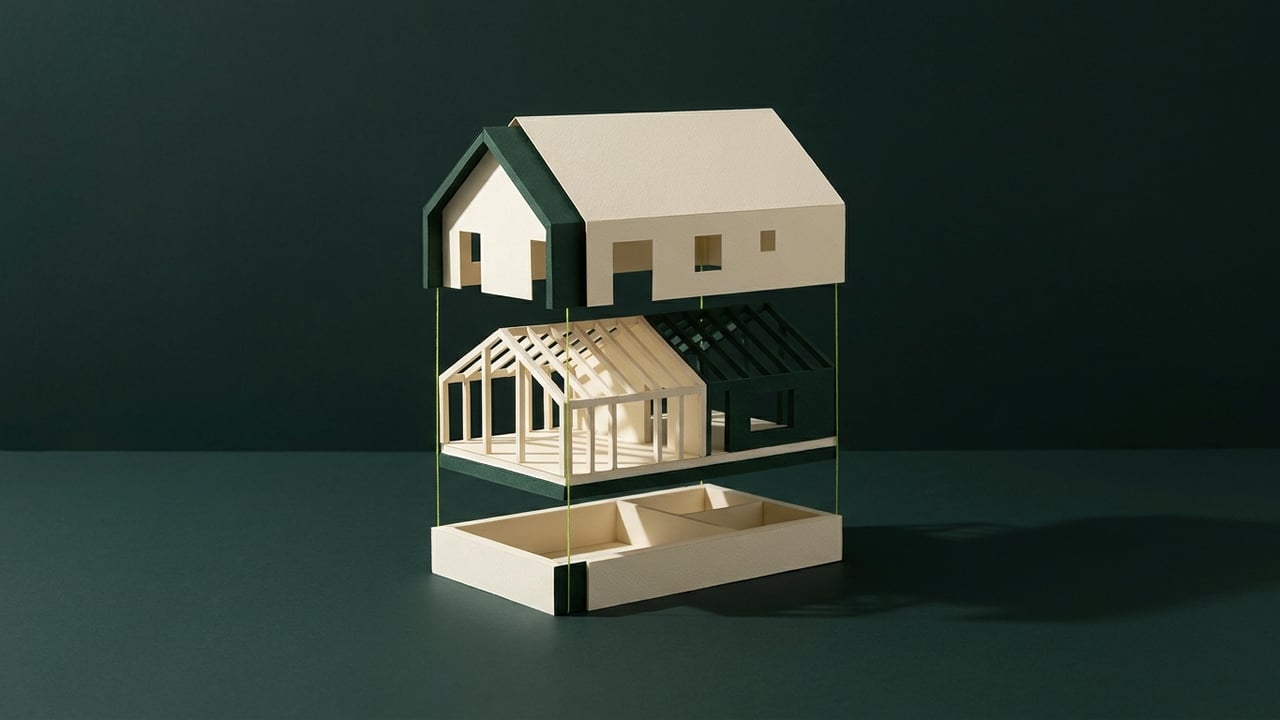
Stop dragging walls into place. Align, Trim/Extend to Corner, Offset and Split Element do it exactly. This is the full list from the video, with what each key does and where it lives in Revit.
Your mouse was never the problem. Dragging was.
Every wall placed by dragging carries a small amount of guesswork: a corner that looks closed but has a hairline gap, a wall that looks aligned but is a fraction of a degree off, an endpoint nudged one pixel too far. None of that shows up until the wall section or the schedule catches it. Four default Revit 2024 shortcuts replace dragging for exactly this kind of wall placement: Align (AL), Trim/Extend to Corner (TR), Offset (OF) and Split Element (SL). This is the full list promised for commenting SHORTCUTS: what each one does, and where it lives in Revit.
All four come from Autodesk's default Revit 2024 shortcut list, and all four sit in the same place: the Modify panel.
Align (AL): snap one wall to match another exactly
Align fixes the "looks straight but isn't" problem. Activate it with AL, pick the element you want to match (a wall face, a grid line, a reference plane), then pick the element you want to move into alignment with it. Revit snaps the second element to match the first exactly, instead of leaving it wherever the mouse happened to drop it. It works on single elements or on a selection of several at once, which is the faster way to true up a run of walls that drifted out of line over several edits.
Trim/Extend to Corner (TR): close a corner without dragging an endpoint
Trim/Extend to Corner is TR. Select the two wall segments that should meet, click near the corner you want to keep, and Revit extends or trims both walls into one clean corner in a single move. This is the direct replacement for dragging a wall endpoint toward another wall and hoping it lands exactly on it: the command computes the intersection, so the corner is closed, not approximately closed.
Offset (OF): move a wall a precise distance, typed, not dragged
Offset is OF. Select the wall (or a model line, detail line or beam), enter the exact distance you need, and Revit creates or moves a parallel copy that distance perpendicular to its length. Because the number is typed into a field instead of estimated by eye, a 6-inch furring wall or a 2-foot setback comes out exactly 6 inches or 2 feet, every time, with no need to check it against a dimension string afterward.
Split Element (SL): cut a wall at a point without deleting anything
Split Element is SL. Click the point on the wall where the cut should happen, and Revit splits it into two independent wall segments right there, with nothing deleted and no redraw required. It is the shortcut for turning one long wall into two separately editable segments, for example when half a run needs a different wall type or a different phase, without losing the geometry on either side of the cut.
Where to find all four: the Modify panel
Align, Trim/Extend to Corner, Offset and Split Element all live in the same place in Revit: the Modify panel. That is not a coincidence. All four are correction and placement tools for existing geometry, as opposed to tools that draw something new, which is why they group together and why learning one makes the next three faster to pick up.
These four are a start, not the whole list
Revit 2024 ships with about 195 default keyboard shortcuts in total, covering navigation, visibility, annotation, MEP and more, split into seven sets. The full Revit shortcut sheet has all 195, organized by category and searchable in one field, sourced straight from Autodesk's own reference, including a note on how to reassign any of them (Revit's Keyboard Shortcuts dialog has a shortcut of its own: KS).
When the bottleneck isn't the shortcut anymore
Four shortcuts fix how fast one person places and corrects walls. They do not fix a Revit workload that has grown past what one person can carry, which shows up as the same project architect quietly absorbing routine modeling work between the tasks only they can do. That is a staffing question, not a keyboard question; see do you need a dedicated Revit hire or more overflow help for how to tell a recurring workload from a one-off spike, and who staffs the Revit to render handoff at your firm for the same question on the step right after modeling.
WorldTeams places pre-vetted Revit professionals, from the top 3% of applicants, in the same time zone as your team in less than 72 hours, with a dedicated account manager and a two-week replacement guarantee if the fit is wrong. More than 370 companies in the US already staff Revit production work this way; details are at worldteams.com.
Working in SketchUp instead of Revit on a given project? Four SketchUp shortcuts that do the same job for Push/Pull, Offset, Move and Back Edges covers that tool's equivalent set.
Need to check how a model actually looks instead of how it is placed? Four Revit shortcuts that change how you see a model covers Wireframe, Hidden Line, Shaded with Edges and Tile Views.
- Revit shortcuts
- Revit workflow
- BIM staffing
Frequently asked questions
Answers to the questions readers ask most about Revit shortcuts for placing walls exactly.
What is the keyboard shortcut for the Align tool in Revit?
Align is AL. Select it, pick the element you want to match (a wall face, a grid line, a reference plane), then pick the element you want to move into alignment with it. Revit snaps the second element to match the first exactly, which is the fix for a wall that looks straight but is a few hairline degrees off after being dragged. The command lives in the Modify panel; see the full Revit shortcut sheet for where every other command sits.
Where is the Trim tool in Revit, and what does TR actually do to a wall?
Trim/Extend to Corner is TR, also in the Modify panel. Select the two wall segments that should meet, click near the corner you want to keep, and Revit extends or trims both walls into one clean corner. It replaces dragging an endpoint and eyeballing whether the walls actually meet, which is how small gaps or overlapping corners get into a model in the first place. More detail is in Trim/Extend to Corner above.
How does Offset (OF) move a wall without dragging it?
Offset is OF. Select the wall, enter the exact distance you need, and Revit moves a parallel copy (or the same wall, depending on the option chosen) that distance perpendicular to its length. Because the distance is typed, not dragged, the new wall position is exact to the unit you enter instead of approximate to where the cursor happened to land. See Offset above for a worked example.
What does Split Element (SL) do, and is it different from deleting part of a wall?
Split Element is SL. Click the point on the wall where you want the cut, and Revit splits it into two independent wall segments at that exact point, with nothing deleted and no redraw needed. It is the shortcut for the case where one long wall needs to become two walls (for example, to assign a different wall type to part of a run) without losing the geometry on either side. See Split Element above for the full walkthrough.
Are these four shortcuts the complete list for Revit, or just for walls?
They are the complete list of the four commands named in the video: Align, Trim/Extend to Corner, Offset and Split Element, the ones that replace dragging when placing or correcting walls. Revit 2024 ships with about 195 default keyboard shortcuts in total covering navigation, visibility, annotation and more; the full set is organized by category on the WorldTeams Revit shortcut sheet, which is also where these same four commands are documented against Autodesk's own reference.
Can these four shortcuts be reassigned to different keys?
Yes. Revit has a Keyboard Shortcuts dialog (shortcut KS) where any default assignment, including AL, TR, OF and SL, can be changed to a different key combination. That dialog and the full list of what can be reassigned are covered in the WorldTeams Revit shortcut sheet, and the underlying command set is documented on Autodesk's own Revit product page.