Four Revit Shortcuts to Change How You See a Model
Share this article


Key takeaways
- Wireframe, Hidden Line, Shaded with Edges and Tile Views are default Revit 2024 shortcuts that change how you see a model, not the model itself.
- Wireframe (WF), Hidden Line (HL) and Shaded with Edges (SD) are visual styles set from the View Control Bar; Tile Views (WT) arranges open views side by side to compare them.
- This is the full list of the four Revit shortcuts from the video, promised for commenting SHORTCUTS: what each one does and where it lives in Revit.
- Switching visual style never changes geometry: a wall hidden behind a shaded surface is still there in Wireframe or Hidden Line.
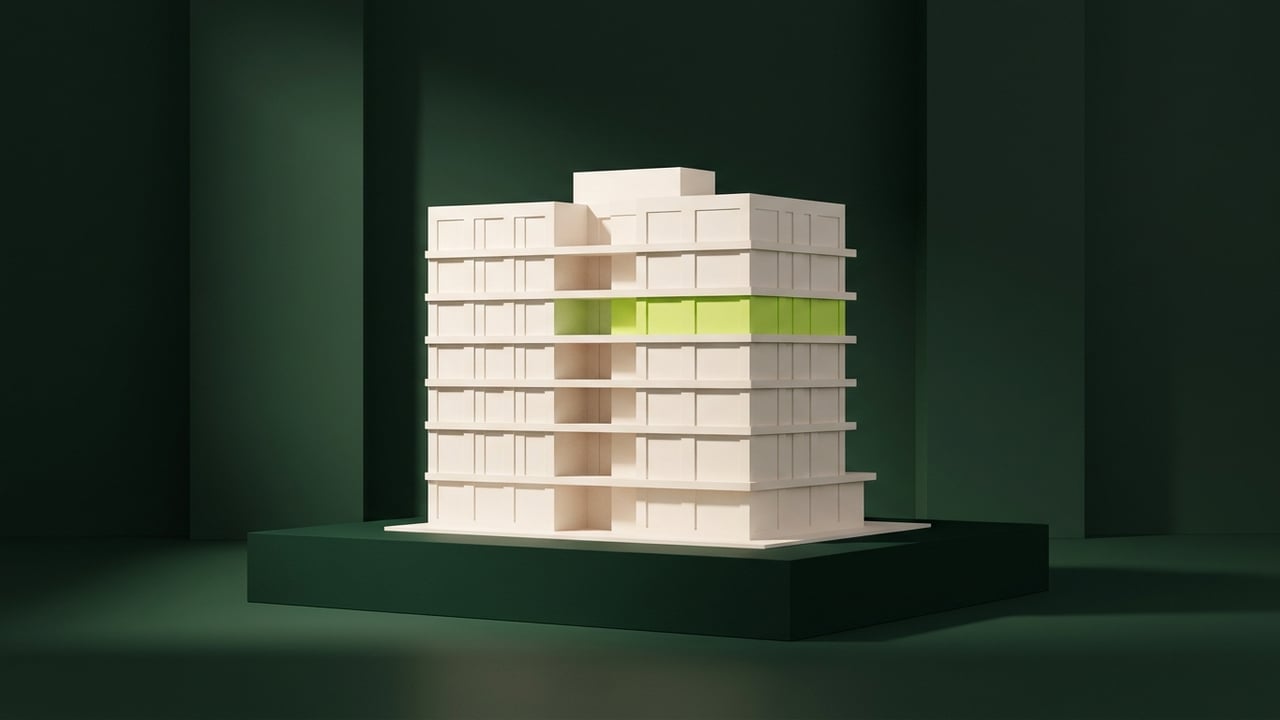
Same model, four looks. Wireframe, Hidden Line, Shaded with Edges and Tile Views change how you see it, not what it is. This is the full list of the four Revit shortcuts from the video.
Same model, four looks
There is a wall behind that wall. You did not add anything and you did not delete anything, you just changed how you look at the model. Four default Revit 2024 shortcuts do exactly that: Wireframe (WF), Hidden Line (HL), Shaded with Edges (SD) and Tile Views (WT). This is the full list of the four Revit shortcuts from the video, promised for commenting SHORTCUTS: what each one does, and where it lives in Revit.
All four come from Autodesk's default Revit 2024 shortcut list, and the first three sit in the same place: the View Control Bar, at the bottom of every view.
Wireframe (WF): see only lines, no surfaces
Wireframe is WF. Activate it from the View Control Bar or type WF, and Revit draws every edge in the model as a line, with no shading and no hidden-line removal. A wall behind a wall, a duct behind a ceiling, a column behind a curtain panel: all of it stays visible, drawn as lines, because nothing is treated as a solid surface that blocks the view. It is the fastest way to check what a model actually contains behind its finished faces.
Hidden Line (HL): see surfaces without their shading
Hidden Line is HL. It draws the same edges as Wireframe, but calculates which lines a solid surface would hide and removes them, so the model reads as solid geometry again: the wall behind the wall disappears from view, the way it would to someone standing in the room. Nothing is colored and nothing is shaded, which keeps the drawing fast to render and easy to read against printed line work.
Shaded with Edges (SD): see the model the way a client sees it
Shaded with Edges is SD. It keeps the same edges Hidden Line computes and adds flat color shading to every surface, so materials and massing read at a glance instead of needing to be inferred from an outline. Of the three visual styles, this is the one closest to how a client or a contractor reads an image rather than a technical drawing, which is why it is the common choice for a screenshot dropped into an email or a meeting.
Tile Views (WT): compare two visual styles side by side
Tile Views is WT. It is not a visual style, it is a window command: activate it and every open view in Revit arranges into a grid on screen at once, instead of staying stacked behind full-screen tabs. That is what makes the other three shortcuts useful together: open the same model in Wireframe in one tile and Shaded with Edges in another, and the comparison that proves nothing changed except how you are looking is right there on screen, no switching back and forth required.
Where to find all four: the View Control Bar
Wireframe, Hidden Line and Shaded with Edges live in the same place: the small row of icons on the View Control Bar at the bottom-left of every Revit view. Tile Views lives one level up, under View > Windows. None of the four change a single piece of geometry; they only change how that geometry is drawn on screen, which is also why switching between them costs nothing and loses nothing. The full Revit shortcut sheet has all 195 default Revit 2024 shortcuts organized by category and searchable in one field, sourced straight from Autodesk's own reference, including how to reassign any of them through the Keyboard Shortcuts dialog (its own shortcut is KS).
These four are a start, not the whole list
Visual style shortcuts are one slice of a much larger set. Revit 2024 ships with about 195 default keyboard shortcuts in total, covering navigation, visibility, annotation, MEP and more, split into seven sets. Working on repeating or locking elements instead of switching views? Four Revit shortcuts that stop the repeat click covers Array, Match Type Properties, Pin and Unpin. Placing walls instead? Four Revit shortcuts that replace dragging walls into place covers Align, Trim/Extend to Corner, Offset and Split Element.
When the bottleneck isn't the shortcut anymore
Four shortcuts fix how fast one person checks and presents the same model. They do not fix a Revit workload that has grown past what one person can carry, which shows up as the same project architect quietly absorbing routine modeling work between the tasks only they can do. That is a staffing question, not a keyboard question; see do you need a dedicated Revit hire or more overflow help for how to tell a recurring workload from a one-off spike, and who staffs the Revit to render handoff at your firm for the same question on the step right after modeling.
WorldTeams places pre-vetted Revit professionals, from the top 3% of applicants, in the same time zone as your team, in less than 72 hours, with a dedicated account manager and a two-week replacement guarantee if the fit isn't right. More than 370 companies in the US already staff Revit work this way; see worldteams.com for details.
- Revit shortcuts
- Revit workflow
- BIM staffing
Frequently asked questions
Answers to the questions readers ask most about Revit shortcuts for visual styles.
What is the keyboard shortcut for Wireframe (WF) in Revit?
Wireframe is WF. Activate it from the View Control Bar at the bottom of the view, or type WF, and Revit draws every edge in the model as a line, with no surface shading or hidden-line removal, so geometry behind a wall or a slab is visible straight through it. See Wireframe above for what that is useful for.
How is Hidden Line (HL) different from Wireframe?
Hidden Line is HL. It draws the same edges as Wireframe, but removes the lines a solid surface would block from view, so the model reads as solid geometry again instead of a see-through line drawing. More detail is in Hidden Line above.
What does Shaded with Edges (SD) add that Hidden Line doesn't?
Shaded with Edges is SD. It keeps the same edges as Hidden Line and adds flat color shading to every surface, which is the closest of the four to how a client reads an image rather than a technical drawing. See Shaded with Edges above for where that matters in a review.
Tile Views (WT) isn't a visual style, so what does it actually do?
Tile Views is WT. It arranges every open view in Revit into a grid on screen at once, instead of switching between full-screen tabs, which is what makes comparing Wireframe against Shaded with Edges on the same model possible without flipping back and forth. See Tile Views above.
Are Wireframe, Hidden Line, Shaded with Edges and Tile Views the complete list from the video, or is there more?
They are the full list of the four Revit shortcuts from the video: Wireframe, Hidden Line, Shaded with Edges and Tile Views, the ones that change how the same model looks without changing the model itself. Revit 2024 ships with about 195 default keyboard shortcuts in total; the complete set, organized by category, is on the WorldTeams Revit shortcut sheet, which documents these same four commands against Autodesk's own reference.
Can Wireframe, Hidden Line, Shaded with Edges or Tile Views be reassigned to different keys?
Yes. Revit's Keyboard Shortcuts dialog, itself opened with the shortcut KS, lets you change any default assignment, including WF, HL, SD and WT, to a different key combination. That dialog is covered on the WorldTeams Revit shortcut sheet, and the underlying command set is documented on Autodesk's own Revit product page.