How To Use The Revit Section Box The Right Way
Share this article


Key takeaways
- Duplicate the 3D view first so the Section Box never changes your original model view.
- Turn the Section Box on from the Properties panel, under Extents, then drag the blue grips to slide each face into the model.
- When you only need to show a handful of elements, select them and type BX for a Selection Box instead of clipping the whole model.
- Clients understand a clean, isolated view right away, which makes review calls shorter.
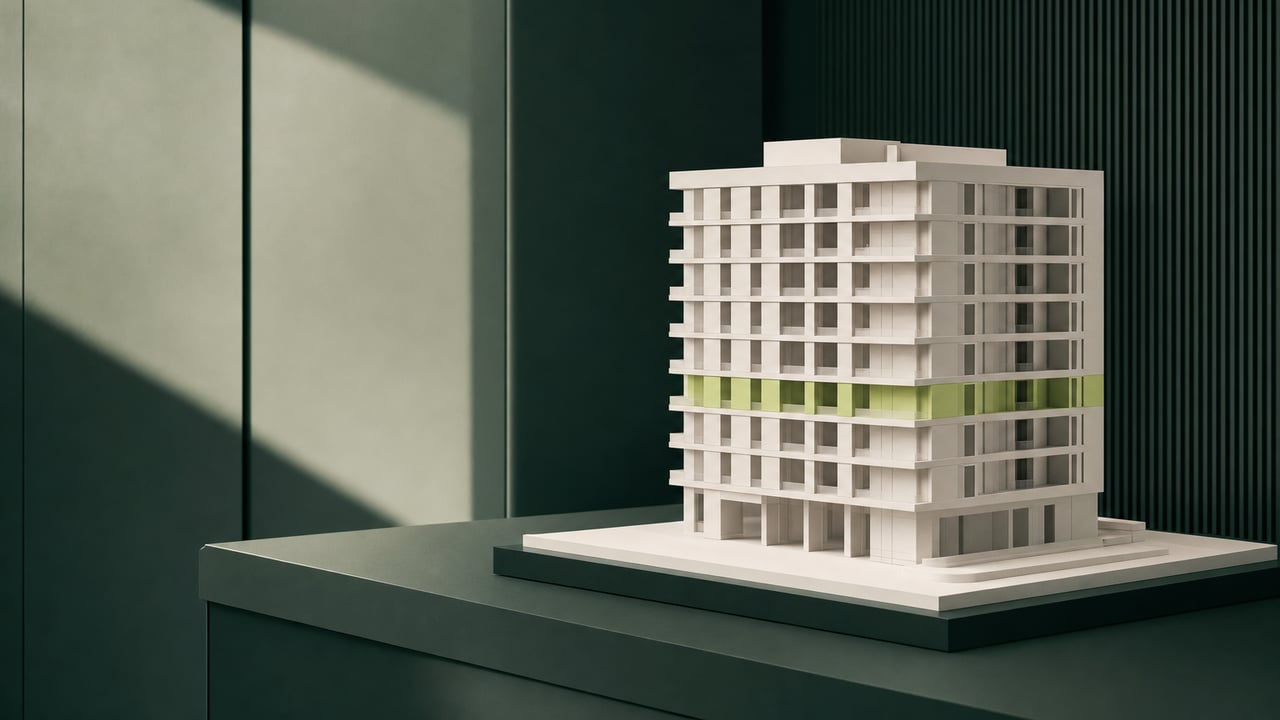
A full walkthrough of the Revit Section Box workflow, from duplicating your 3D view to isolating a few elements with the Selection Box shortcut.
Duplicate the 3D view before you touch anything
Open your default 3D view, right click it in the Project Browser, and choose Duplicate View. Work on the duplicate, not the original. The Section Box will only affect the view you apply it to, so keeping an untouched copy means you can jump back to the full model in one click whenever a client asks to see the whole building again.
This single habit is what separates a tidy walkthrough from a stressful one. Duplicating the view this way means the original stays intact no matter how much turning, dragging, or clipping you do to the Section Box later. Skipping it means resetting Extents by hand later, mid call, while everyone waits.
Turn on the Section Box from the Properties panel
With the duplicated 3D view active, open the Properties panel and scroll to Extents. Check the box labeled Section Box. Revit immediately wraps the whole model in a bounding box aligned to the project. Nothing changes yet visually, since the box starts at the edges of the model, but you now have six blue arrow grips ready to move.
According to Novedge, the Section Box is the quickest way to get interactive 3D coordination without leaving the 3D view, since every face stays adjustable at any point. Hagerman's team describes the same control, noting that Revit turns the Section Box on from the Extents section of the Properties panel for a 3D view.
Drag the grips to slide each face into the model
Click and hold any of the blue arrows on the Section Box faces, then drag it inward. Each face moves independently, so you can shave off a roof, a far wing, or an upper floor without touching the rest. Combine two or three faces and you get a corner cut, useful for showing an interior stair or a mechanical room without the surrounding walls in the way.
Zoom out first so you can see all six grips before you start dragging; it is easy to grab the wrong face when the box is zoomed in tight. If a face snaps somewhere unexpected, Orient to View and reset the Section Box from the view's right click menu, then start the drag again.
Use the BX shortcut when you only need a few elements
Sliding faces works well for cutting through a building, but it is the wrong tool when you only want to show three columns, one stair run, or a single mechanical assembly. For that, select the elements first, then type BX. Revit builds a Selection Box sized to exactly what you picked, hiding everything else in that view without changing visibility settings for the rest of the model.
This is the move most tutorials skip. A Section Box always clips along flat planes aligned to the whole project; a Selection Box follows your actual selection, so an oddly shaped group of elements still ends up framed cleanly. Use the Section Box when you are walking through the building; use BX when the conversation has already narrowed down to a specific set of parts.
Using the BX keyboard shortcut lets you wrap a box around the chosen elements, instead of clipping the whole model.
Why this sequence matters on a client call
Clients get it right away when they see a clean cut instead of a cluttered model. A Section Box that still shows ten unrelated walls, or a Selection Box triggered on the wrong group of elements, forces you to explain what they are looking at before you can even start the real conversation. Doing the four steps in order, duplicate the view, enable the Section Box, drag the faces, switch to BX for small groups, means the view is already readable before anyone asks a question.
Our drafting teams work inside each client's own Revit model on live projects, which is exactly where this sequence gets used every day. If your team needs steady hands on a Revit model while your core staff stays focused elsewhere, read how WorldTeams drafting support works inside a client's live Revit model, or see how a dedicated Revit hire can cover overflow work without disrupting your current workflow. You can also look at our Revit drafting services for the full scope of what a dedicated drafter can take off your plate.
- Revit
- BIM
- Drafting
- Autodesk
Frequently asked questions
Answers to the questions readers ask most about Revit Section Box.
Why can't I see the section box in Revit?
The Section Box only shows up once you turn it on from the Properties panel, under Extents, and only in that 3D view. If the box seems to vanish, you likely moved to a plan or section view, where the Section Box control does not apply.
How do I set up a section in Revit?
A section cut is a separate tool from the Section Box. For a true section, place a section line on a plan view and open the resulting section view. For a 3D view you want to clip interactively, see how Novedge documents the Section Box workflow.
What is the difference between the Section Box and the Selection Box in Revit?
The Section Box clips the entire 3D view along six faces you drag by hand. The Selection Box, triggered with the BX shortcut after selecting one or more elements, builds a tight box around only what you picked, leaving the rest of the model untouched.
When should I duplicate a 3D view before using the Section Box?
Duplicate the view before you turn the Section Box on, the same first step covered in this Section Box guide. That way your original, uncut 3D view stays available any time you need to show the whole model again.
Does the Section Box change the model, or only the view?
It only changes what that specific 3D view displays. The underlying model, and every other view of it, stays exactly as it was, which is also why our drafters can rely on it inside a client's live Revit model without any risk to the actual project.