How to Build an Exploded Axonometric in Revit
Share this article


Key takeaways
- This is the full guide promised for commenting BIM: duplicate the 3D view, Displace Elements on the roof, repeat on every level, then add paths.
- Displace Elements is a view specific change. It never edits the underlying Revit model, and it can be reset at any time.
- Edit > Add to Displacement groups more pieces into the same displacement, so you displace one piece and add the rest instead of restarting the tool each time.
- Displacement paths are optional dashed lines that show where each displaced piece came from.
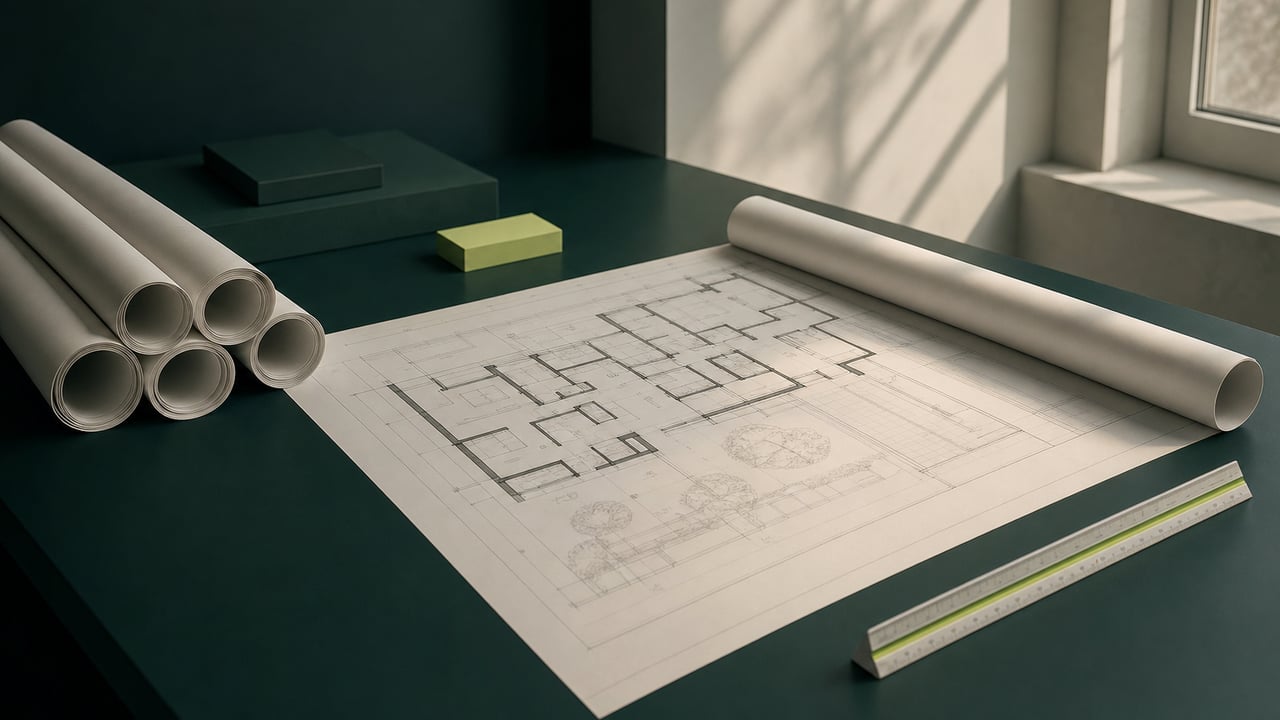
Comment BIM on the post and this is the guide you get: duplicate the view, displace the roof and every piece on each level, add paths, and the model underneath never changes.
The guide from the video: an exploded axonometric that never touches the model
Comment BIM on the reel and this is the guide: how to blow a Revit model apart into a clean exploded axonometric, step by step, using the Displace Elements tool, without ever changing the model itself. Four moves get you there: duplicate the view, displace the roof, displace everything else per level, then add paths.
Step 1: Duplicate your 3D view so the exploded one lives on its own
Before touching anything, duplicate the 3D view you plan to explode. The copy is where every displacement happens; your working view, the one used for actual documentation and coordination, stays untouched. This single step is what keeps an exploded axonometric from turning into an accidental edit to the view everyone else on the project relies on.
Step 2: Select the roof and use Displace Elements to pull it up
In the duplicated view, select the roof, open the Modify tab, and choose Displace Elements. Displace Elements sits in the same selection based part of the Modify tab as other context tools covered in four Revit shortcuts that replace dragging walls into place. Drag it straight up. The roof now floats above the rest of the building in that view only: Displace Elements is a view specific modification, it does not move the roof in the underlying model or in any other view, and it can be reset later if you change your mind. That confirmation is consistent with how Man and Machine's own walkthrough of the tool describes it.
Step 3: Displace every other piece on each level the same way
Work down through the building one level at a time: walls, floor, windows, anything else on that level. The fast way is not to repeat Displace Elements from scratch for every single piece. Displace one piece, then use Edit > Add to Displacement to add the rest of that level's pieces into the same displacement. Each level ends up as its own clean, evenly spaced layer in the exploded view, built with one displacement action instead of a dozen separate ones.
Step 4: Add paths so dashed lines show where each piece came from
Once pieces are displaced, add displacement paths: dashed lines that connect each piece's exploded position back to where it actually sits in the model. Paths are optional per element, so add them where the jump needs explaining, for example between a wall and the level it was pulled from, and skip them where the layering already reads clearly on its own.
The model doesn't change, only the view does
Every one of these moves lives inside the duplicated view. The actual Revit model, its geometry, its coordinates, the elements everyone else's views and schedules depend on, never changes. That is also why it is safe to experiment: if a displacement does not look right, reset it and try again, because nothing here can be undone in a way that touches real project data.
When an exploded view isn't the bottleneck anymore
Building one exploded axonometric is a few minutes of modeling with the steps above. It stops being a quick task when a firm needs views like this, plus the construction documentation around them, produced across project after project, and whoever is building them is also the person carrying the firm's other Revit work. At that point the question is not which tool to use, it is who has the time to use it; do you need a dedicated Revit hire or more overflow help covers how to tell a recurring Revit workload from a one off request, and who staffs the Revit to render handoff at your firm looks at the same question for the step right after modeling.
WorldTeams places pre-vetted Revit professionals, from the top 3% of applicants, in your time zone in less than 72 hours, with a dedicated account manager and a two-week replacement guarantee if the fit isn't right. Over 370 companies in the US already staff Revit production work this way; see worldteams.com for details.
Working on a different repeat click instead of an exploded view? Four Revit shortcuts that stop the repeat click: Array, Match Type Properties, Pin and Unpin covers the same grouping logic applied to copying, matching and locking elements, including how to reassign a command through the Keyboard Shortcuts dialog.
- Revit workflow
- BIM staffing
- Displace Elements
Frequently asked questions
Answers to the questions readers ask most about Revit exploded axonometric with Displace Elements.
How do you create an exploded axonometric in Revit?
Duplicate your 3D view so the exploded version lives on its own copy, never the working view. Select the roof, open the Modify tab and choose Displace Elements, then drag it straight up. Do the same on every other piece per level (walls, floor, windows), using Edit > Add to Displacement to add pieces into the same displacement instead of restarting the tool each time. Finish by adding displacement paths so dashed lines show where each piece came from. The sequence is documented step by step in the Displace Elements overview from Man and Machine.
Does Displace Elements change the underlying Revit model?
No. Displace Elements is a temporary, view specific modification: it moves how pieces appear in that one view, not the model's actual geometry or coordinates. Switch to any other view and every element sits exactly where it was placed. The displacement can also be reset later from the same contextual tools, so nothing about it is permanent. See the Man and Machine write-up on Revit's displace tool for the same confirmation.
Where does Displace Elements live in Revit, and does it have a default keyboard shortcut?
Displace Elements sits on the contextual Modify tab that appears once you select an element, inside the same panel as other selection based tools. It does not ship with a default keyboard shortcut the way commands like Array (AR) or Match Type Properties (MA) do; you select the element first, then click the command on the ribbon. The sibling guide on Revit shortcuts for Array, Match Type Properties, Pin and Unpin covers how Revit's default shortcuts work and how to assign a new one through the Keyboard Shortcuts dialog (KS).
How do you add the dashed displacement path lines in Revit?
Once a piece is displaced, the same contextual displacement tools include an option to show its displacement path: a dashed line connecting the piece's current, exploded position back to its original location in the model. It is optional per element, so you can add a path only where the jump between original and exploded position needs explaining. The Man and Machine Displace Elements guide covers the same path and grouping controls.
Can one Displace Elements action cover several pieces at once instead of one at a time?
Yes. Displace one piece first, then use Edit > Add to Displacement to add more pieces into that same displacement instead of running Displace Elements again for each one, exactly as covered in step 3 of this guide. It is the same logic behind other Revit shortcuts that stop a repeat click, like Array, Match Type Properties, Pin and Unpin, just applied to exploding a model instead of copying or locking it.
Is an exploded axonometric view a one person job, or does it point to a bigger Revit workload?
Building one exploded view is a modeling task any Revit user can do in minutes with the steps above. It turns into a staffing question when a firm needs this kind of view, and the documentation work behind it, produced repeatedly across projects rather than once. Do you need a dedicated Revit hire or more overflow help covers how to tell a recurring Revit workload from a one off request.