Resize Every Door at Once: Revit Door Type Properties Explained
Share this article


Key takeaways
- A door's Width, Height and other dimensions live on the Type, not the instance. Edit one door's Type and every door sharing that type resizes with it, everywhere in the model.
- The fix for six doors that should all be 36 inches wide: select one, open Edit Type, change Width once, confirm with OK.
- Renaming the type after the edit keeps its label honest; a type still called '30" Single' after becoming 36 inches reads wrong on every schedule that lists it.
- This is the guide promised for commenting BIM: the full door Type Property workflow named in the video, not a summary of it.
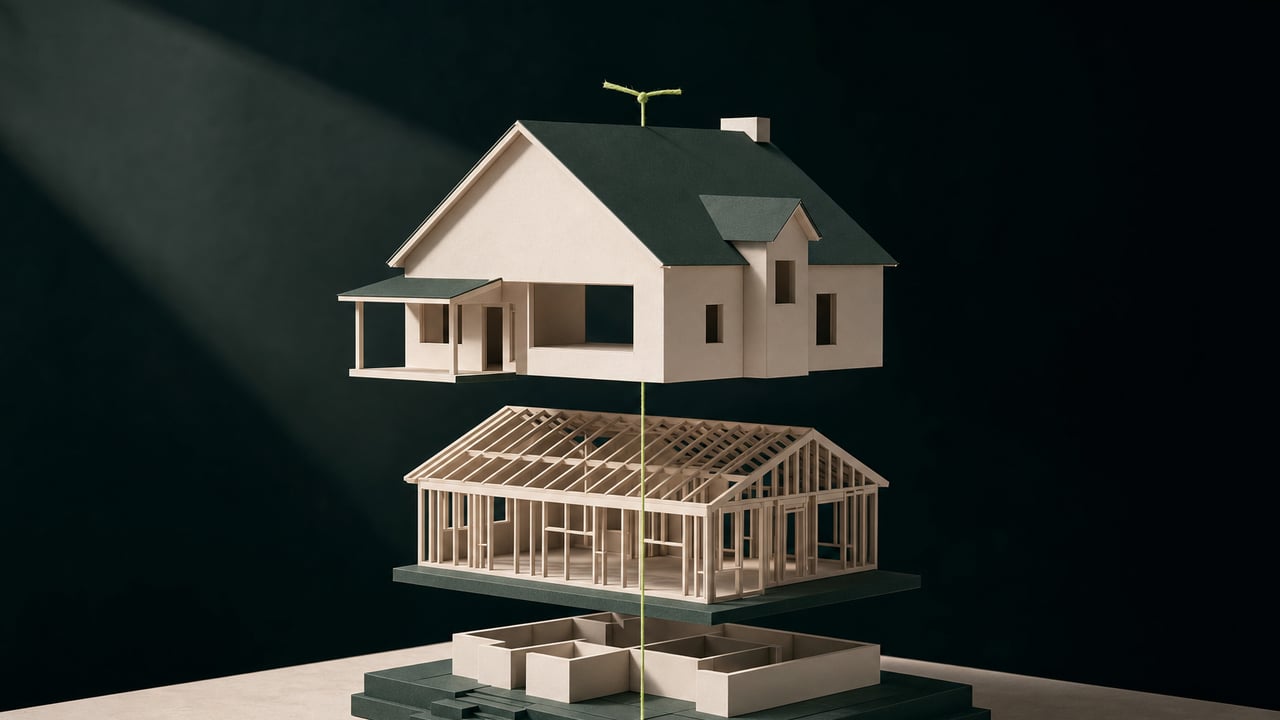
Change one Width value on a door Type and every door built from it updates everywhere in the model. The full workflow from the video, why it works, and how to keep names in sync.
Comment BIM and this is what you get: the full door Type Property workflow
Six single doors in the same plan, all meant to be 36 inches wide, all still showing 30 inches. The fix the video names is one edit, not six: select a single door, open Edit Type in the Properties palette, change Width from 30 inches to 36 inches, confirm with OK, and every door built from that type updates, in the current view and anywhere else in the model it appears. Rename the type afterward so its label matches the door it now describes. That is the complete workflow promised for commenting BIM: what to click, what changes, and the one step people skip.
Type Properties versus Instance Properties: why one edit moves six doors
Every door in Revit carries two kinds of data. Instance Properties belong to the single door you clicked: its level, its sill height, a mark unique to that opening. Type Properties belong to the type the door was built from, and Autodesk's own Door Type Properties reference lists width, height, thickness, door and frame material, type mark and fire rating among them. Because those are type properties, every door built from a type shares their values; a rated door and an unrated door need two separate types, not one, precisely because fire rating is a type-level value.
That split is why Edit Type behaves differently from the regular Properties palette. Opening Edit Type does not edit the door you clicked. It opens the shared definition that door points to, and every other door pointing to the same definition changes with it. Six doors drawn from one type is one edit. Six doors drawn from six separate types would need six edits, which is the scenario worth avoiding in the first place.
The workflow: one Edit Type, six doors
- Click one of the single doors in the model. Any instance of the type works; the edit applies to the type, not the specific door selected.
- Open Edit Type in the Properties palette. This opens the Type Properties dialog for the type that door belongs to.
- Change Width from 30 inches to 36 inches, then confirm with OK.
- Every door built from that type updates immediately, here and in every other view where it appears, because the value changed on the shared type, not on one instance.
- Rename the type so its name matches the door it now describes. A type still labeled "30" Single" after this edit will read wrong on the door schedule, which pulls the type name directly into its Door Type column.
Draw the rule, not the door: one edit to the type replaces editing each door by hand, and it is the same shared-definition logic that keeps a door schedule accurate, since the schedule reads width, material and fire rating straight from the type.
When this workflow is the wrong tool
Not every width change belongs on the type. If five of the six doors should stay at 30 inches and only one needs to become 36 inches, editing the type resizes all six, which is the opposite of what is needed. Two ways to keep that one door separate:
- Change its Instance Property instead of using Edit Type, if the dimension in question is exposed at the instance level for that family, following Autodesk's own guidance on moving a dimension from Type to Instance.
- Duplicate the type first, give the duplicate a new name, then edit Width on the duplicate. The original type and every other door still built from it stay untouched; only doors reassigned to the new type change.
Either way, the same underlying rule applies: a Type Property edit always reaches every door sharing that type, so the question before opening Edit Type is whether every door on that type is actually supposed to change together.
Keeping type names honest as a model grows
A model with a handful of door types is easy to audit by eye. A model with forty, built up over months by different hands, is not: a type named for its original dimension but resized months later by someone who skipped the rename step turns the door schedule into a list of labels that quietly disagree with the numbers next to them. The fix is procedural, not a one time cleanup: rename the type as the last step of every Width or Height edit, the same way step four above does it, so the type name and the type's actual dimension never drift apart on a project that runs for a year or more.
This is the same discipline that keeps a door schedule usable for the contractor pricing from it: schedules read type data directly, so an unrenamed type is not a cosmetic issue, it is wrong data propagating to every row that cites it.
Who keeps this consistent on a growing model
On a single project, remembering to rename a type after resizing it is a habit. Across a firm running several active projects, with different staff touching the same template over time, it becomes a standards question: who checks that every door type's name still matches its dimensions before the set goes out. WorldTeams places Revit professionals who own exactly that kind of modeling discipline day to day, in the same time zone as the rest of the team, so Type Property hygiene is somebody's job rather than whoever last opened the file. See how that ownership plays out on the handoff between a finished Revit model and a client-ready render, where the same shared-data logic determines whether materials map cleanly or break on every swap.
For the keyboard-first version of this same idea, applied to walls instead of doors, see four Revit shortcuts that replace dragging walls into place: Align, Trim/Extend to Corner, Offset and Split Element.
- Revit workflow
- BIM staffing
- Door scheduling
Frequently asked questions
Answers to the questions readers ask most about Revit door Type Properties and resizing doors in bulk.
What is the difference between a door Type Property and an Instance Property in Revit?
A Type Property (Width, Height, door and frame material, fire rating) is shared by every door built from that type, so editing it in Edit Type changes every instance at once. An Instance Property (level, sill height, a specific mark) belongs to one placed door only. See Type Properties versus Instance Properties above for how that split plays out on a real door.
Why did changing one door's width in Revit change every other door too?
Because Width sits on the Type, every door placed from that same type reads its Width from one shared definition, as Autodesk documents on its Door Type Properties reference. Changing it on one door through Edit Type changes the definition itself, so every other instance of that type updates in the current view and in every other view of the model, with no extra selection needed. See the workflow above for the exact click path.
How do I change only one door without resizing the rest of its type?
Use Instance Properties instead of Edit Type: select the single door, change the value in the regular Properties palette (not Edit Type), or duplicate the type first with a new name and edit the duplicate's Width, per Autodesk's guidance on moving a dimension from Type to Instance. That creates a second type for the doors that should differ, leaving the original type and its other doors untouched.
Why should I rename a door type after changing its width?
Revit does not rename a type automatically when a dimension on it changes, so a type originally called '30" Single' still carries that name after becoming 36 inches. Anyone reading the door schedule, which pulls the type name directly, sees a label that no longer matches the number next to it. Renaming the type right after the edit, as the last step in the workflow above, keeps the schedule and the model saying the same thing.
Does editing a door Type Property affect doors already placed in other views?
Yes. A Type Property is a single definition shared across the whole project, not per view, so the change shows up in every plan, section, elevation and door schedule where a door of that type appears, the moment it is confirmed with OK. See the workflow above for the exact steps.