Clean Up an Old AutoCAD Drawing: 4 Commands to Run First
Share this article


Key takeaways
- LAYWALK, LAYMRG, OVERKILL and PURGE, run in that order, clear duplicated walls, dead layers and leftover blocks from a legacy AutoCAD file.
- Run LAYWALK first so you see what is actually on each layer before you merge or delete anything.
- OVERKILL removes the duplicate walls and overlapping lines; LAYMRG then merges the layers that piled up across years of edits and different drafters.
- PURGE goes last. Run it earlier and it will skip anything still technically in use.
- The moment this cheat sheet pays off most is the handoff: whoever opens the file next, a new hire or a remote drafter, inherits a usable file instead of a weekend of cleanup.
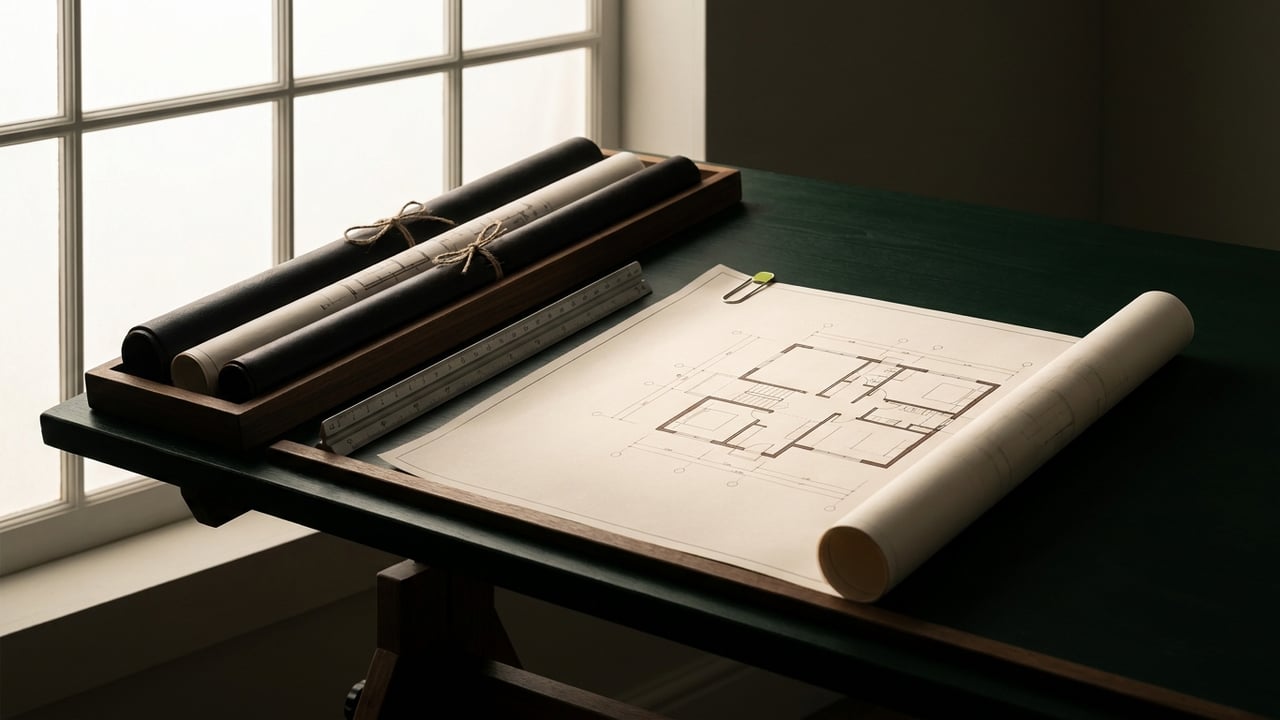
A practical cheat sheet for clearing duplicated walls, dead layers and leftover blocks from a legacy AutoCAD file before your team builds on it.
A 2009-era AutoCAD file does not just look old. It behaves old: walls traced twice on top of each other, layers named WALLS, WALLS-NEW and WALLS2, blocks nobody can identify anymore. Before anyone touches that file for real work, four commands get it back to a usable state: LAYWALK, LAYMRG, OVERKILL and PURGE. All four are documented in Autodesk's AutoCAD help, and all four take minutes to run. The newer AutoCAD releases also help here on their own; see AutoCAD 2025: five drafting workflow upgrades for what changed in block management and drawing comparison.
The real trigger: handing an old file to someone new
Nobody cleans up an old drawing for its own sake. The trigger is almost always a handoff: a new drafter joins the project, a remote hire gets added for extra capacity, or a firm finally revisits a decade-old base file for a renovation. Whoever opens that file next inherits every shortcut and every mistake left in it, and they will spend hours untangling it unless someone runs the cleanup pass first.
That is also the moment a messy file becomes expensive in a way that is easy to miss. A drafter who does not know the file's history cannot tell a real wall from a duplicate, or a layer that matters from one that is dead weight, so they move slowly and cautiously through work that should be routine. The fix is not more training on AutoCAD technique in general; it is this specific sequence, run once, before the handoff.
LAYWALK: see what is actually on the drawing first
Run LAYWALK before anything else. It isolates and displays the objects on one layer at a time, without deleting or changing a single thing, so you can see what each layer actually holds before you decide to merge it or remove it. On an old file with a dozen oddly named layers, this is the step that tells you which ones are duplicates of each other and which ones are genuinely in use. Skipping it means merging or purging blind, which is how real geometry gets deleted by accident.
LAYMRG: merge duplicate layers into one
Once you know what is on each layer, LAYMRG (Layer Merge) moves every object from one layer onto another and deletes the layer you merged away. This is the direct fix for a file with WALLS and WALLS-NEW holding the same kind of geometry because two people, or two software versions, never agreed on a naming convention. Pick the layer name your current standard uses, merge everything else into it, and the layer list shrinks immediately.
OVERKILL: delete duplicate and overlapping lines
OVERKILL finds and removes duplicate or overlapping lines, arcs and polylines. Run it after LAYMRG, once the geometry that matters is consolidated onto the right layers, so OVERKILL can catch duplicates that were previously split across different layers and would not have matched each other. This is the command that fixes a wall drawn twice on top of itself, a problem that is nearly invisible on screen and shows up only as a heavier file and odd selection behavior.
PURGE: remove what nobody is using anymore
PURGE removes unused blocks, layers, linetypes and text styles, but only the ones nothing in the drawing still references. Run it last, after LAYWALK, LAYMRG and OVERKILL, so the layers and blocks that were genuinely dead are the only things left for PURGE to clear. Run it first instead and most of what you want gone will still show a reference somewhere, so AutoCAD will not remove it. A second PURGE pass after the first one often finds a bit more, since removing one block can free up a linetype or style that depended on it.
Run the cheat sheet before the handoff, not after
LAYWALK, LAYMRG, OVERKILL, PURGE. In that order, this sequence turns a file nobody wants to open into one a new drafter can start working in the same day. It is a short list, but the order is what makes it work: skip LAYWALK and you merge or delete blind; run PURGE early and it skips everything still technically referenced.
If the reel that sent you here asked you to comment SHORTCUTS, this is that cheat sheet, the same four commands, documented in Autodesk's AutoCAD help, with the order that makes them actually clean up an old AutoCAD drawing instead of just tidying the surface.
This is also the exact moment WorldTeams gets called in. Firms bring on a WorldTeams drafter specifically to work inside files like this one, pre-vetted from the top 3% of applicants, placed in the same time zone as the client team in less than 72 hours, with a dedicated account manager and no hidden fees. That drafter runs this cheat sheet on day one, inside your standards, so the old file stops being a tax on every project that touches it. More than 370 architecture and engineering companies in the US have handed over a file exactly this messy during onboarding, which is why the sequence above is the first thing we check.
For the broader question of whether a backlog like this is a training gap or a staffing gap, see diagnosing a CAD drafting bottleneck. If the plan is to send the file out instead of staffing it directly, CAD outsourcing for architecture firms covers what to send first and what to hold back. Once the file itself is clean, AutoCAD keyboard shortcuts is the next reference worth keeping open while you work in it.
- AutoCAD
- CAD drafting
- drafting workflow
Frequently asked questions
Answers to the questions readers ask most about Cleaning up an old AutoCAD drawing.
What is the fastest way to clean up an old AutoCAD drawing?
Run four commands in order. LAYWALK to see what is actually on each layer, LAYMRG to merge duplicate layers, OVERKILL to delete duplicate or overlapping lines, then PURGE to remove whatever is left unused, documented in Autodesk's AutoCAD help at help.autodesk.com. Doing them in that order matters, which is why we lay out the full sequence in run the cheat sheet before the handoff, not after.
What does the PURGE command remove in AutoCAD?
PURGE removes unused blocks, layers, linetypes and text styles, which can meaningfully shrink file size and clutter once nothing else in the drawing still references them, according to novedge.com's AutoCAD cleanup tip. Run it last; an item that still has a single object on it will not purge. The same discipline shows up in diagnosing a CAD drafting bottleneck, where regular purging is one of the baseline technique fixes.
What is LAYMRG used for in AutoCAD?
LAYMRG (Layer Merge) moves every object from one layer onto another layer, then deletes the layer you merged away, per novedge.com's AutoCAD cleanup tip. It is the fix for a file where someone created WALLS-NEW instead of using the existing WALLS layer. A legacy file redrawn or handed off for CAD outsourcing almost always needs this step first, as covered in CAD outsourcing for architecture firms.
What does the OVERKILL command do in AutoCAD?
OVERKILL finds and deletes duplicate or overlapping lines, arcs and polylines, which is the direct fix for a wall that got traced twice on top of itself, per novedge.com's AutoCAD cleanup tip. Run it after LAYMRG so duplicates sitting on different layers get caught too, the exact failure mode we walk through in OVERKILL: delete duplicate and overlapping lines.
What is LAYWALK in AutoCAD?
LAYWALK is Autodesk's Layer Walk tool, documented in Autodesk's AutoCAD help at help.autodesk.com, for isolating and reviewing the objects on each layer one at a time without deleting or changing anything. It is the inspection step: run it before LAYMRG or PURGE so you know what each layer actually holds before you merge it or remove it.
Why does an old AutoCAD file end up with walls drawn twice?
It usually happens across a file's history: a wall gets traced again over an imported reference, a copy-pasted detail brings its own duplicate geometry, or two drafters work the same area in different sessions without checking what is already there. None of that shows up until someone runs LAYWALK or OVERKILL and finds the overlap. It is the same pattern we cover from the staffing side in diagnosing a CAD drafting bottleneck: a messy file slows down whoever opens it next, whether that is the original drafter or someone new.